In Part 1, we built a system that fetches winning ads and rewrites the copy tailored to your brand. In Part 2, we turn that copy and inspired ad into a final, HQ ad creative that you can instantly run on Meta or any other ad platform.
Most people try to prompt AI image generators directly with raw text which is a mistake. It’s like telling a painter to “paint a happy dog.” You’ll get a dog, but it might be a poodle when you wanted a golden retriever. As demo’d in the example below, you will see a comparison between raw text vs reading the image and generating a JSON prompt for generating the same ad.
In this tutorial, we use Gemini to convert our script into a Structured JSON that generates an ad. This JSON acts like a strict “Director’s Brief” telling the image model exactly where to place the text, what camera lens to use, and how to light the scene to replicate your seed creative.
Generate JSON
The next block is generate JSON. This JSON is crucial as a prompt in the image creation. The below example should show you the how the JSON works as a director; it takes the seed image and your 360p-equivalent approved script and then converts it into a 4K production-ready JSON. <Explain this metaphor in a better way>
Seed image
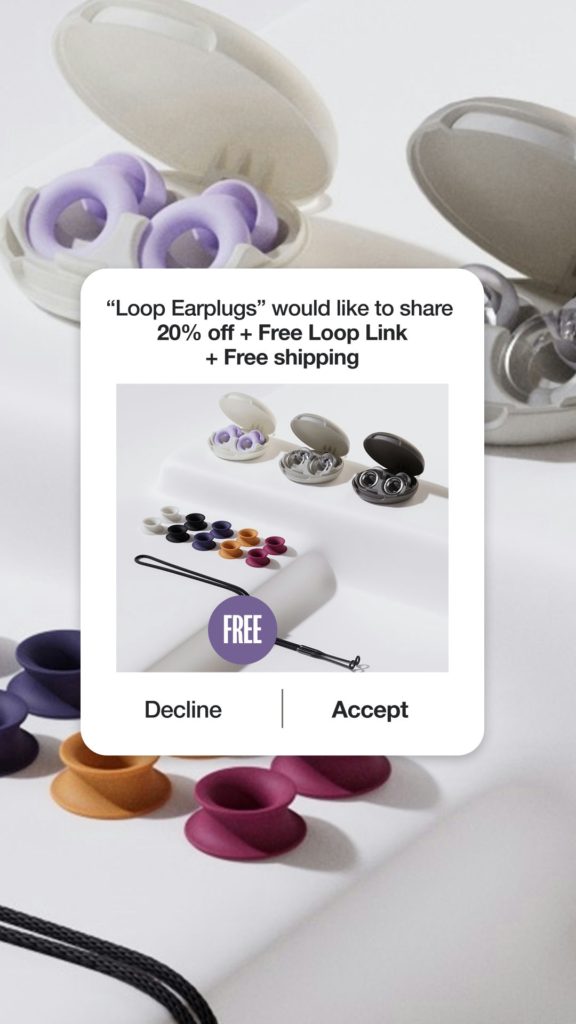
Generated script
"“Zomunk” would like to share deals like
**Delhi → Paris for ₹27k + Full-service airline**
**+ No 18h layovers**

Decline | Accept"Generated JSON
"{
  ""scene"": ""A full-bleed, minimalist, clean, off-white textured surface fills the entire 1080x1920 canvas. The texture is uniformly sharp, clear, and in-focus from the very top edge to the very bottom edge, with no blur or soft focus. Strictly centered in the middle 60% of the frame is a clean white, rectangular pop-up card with soft rounded corners, creating a digital notification aesthetic. Inside this card, all text from the script is clearly arranged. In place of a product image, there is a hyper-realistic, sharp photograph of a Qatar Airways boarding pass showing a flight from Delhi (DEL) to Paris (CDG). At the bottom of the card, two distinct buttons labeled 'Decline' and 'Accept' are separated by a thin vertical line."",
  ""resolution"": ""1080x1920"",
  ""aspect_ratio"": ""9:16"",
  ""quality_modifiers"": ""2K resolution, ultra-detailed, commercial photography, f/22 aperture, deep depth of field, sharp focus edge-to-edge, 300 DPI"",
  ""style"": ""Digital notification pop-up, layered graphic design, minimalist, modern, Premium commercial aesthetic, Crisp, Clean lines"",
  ""camera"": {
    ""angle"": ""Eye-level, straight-on view"",
    ""focal_length"": ""35mm (Wide angle for deep focus)""
  },
  ""lighting"": {
    ""type"": ""Bright, soft studio lighting, diffused to eliminate harsh shadows"",
    ""mood"": ""Clean, modern, premium, informative""
  },
  ""text_elements"": [
    {
      ""text"": ""Zomunk would like to share daily deals like"",
      ""position"": ""Top section of the central white pop-up card, within the middle 60% safe zone."",
      ""font_style"": ""Clean, sans-serif, regular weight."",
      ""color"": ""Black"",
      ""size"": ""Medium""
    },
    {
      ""text"": ""Delhi → Paris for ₹30k + Full-service airline"",
      ""position"": ""Center of the white pop-up card, below the first line of text, within the middle 60% safe zone."",
      ""font_style"": ""Clean, sans-serif, bold weight."",
      ""color"": ""Black"",
      ""size"": ""Large""
    },
    {
      ""text"": ""+ No 18h layovers"",
      ""position"": ""Center of the white pop-up card, below the main deal text, within the middle 60% safe zone."",
      ""font_style"": ""Clean, sans-serif, medium weight."",
      ""color"": ""Black"",
      ""size"": ""Medium""
    },
    {
      ""text"": ""Decline"",
      ""position"": ""Bottom left of the white pop-up card, formatted as a button, within the middle 60% safe zone."",
      ""font_style"": ""Clean, sans-serif, medium weight."",
      ""color"": ""Black"",
      ""size"": ""Medium""
    },
    {
      ""text"": ""Accept"",
      ""position"": ""Bottom right of the white pop-up card, formatted as a button, within the middle 60% safe zone."",
      ""font_style"": ""Clean, sans-serif, medium weight."",
      ""color"": ""Black"",
      ""size"": ""Medium""
    }
  ]
}"You see the difference, right? 🙂
The Airtable setup
Before we run the automation, we need to prepare our database.
1. Create the Columns
Go to your Airtable base and add these specific columns:
- Generate JSON: A
Buttonfield (Triggers the automation). - JSON: A
Long Textfield (Stores the blueprint). - Generate Image: A
Buttonfield (Triggers the final render). - Attachments: An
Attachmentfield (The final result). - final_image: An
URLfield (Drive URL of the image generated).
Configure the “Generate JSON” Button
This button sends your script and inspiration image to n8n.
- Label:
Generate JSON - Action:
Open URL - Formula:
"https://<YOUR_WEBHOOK_URL>/create-json" &
"?id=" & RECORD_ID() &
"&script=" & ENCODE_URL_COMPONENT({Script}) &
"&image_style=" & ENCODE_URL_COMPONENT({Image URL})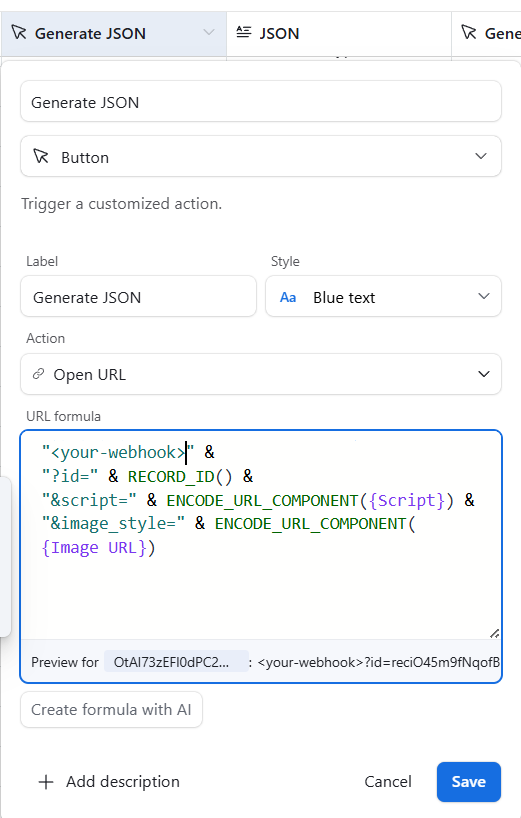
Configure the “Generate image” Button
This button sends your final JSON to n8n and creates your final image.
- Label:
Generate image - Action:
Open URL - Formula:
"https://your-webhook-url/webhook/generate-ad" &
"?id=" & RECORD_ID() &
"&image=" & ENCODE_URL_COMPONENT({Image URL}) &
"&json=" & ENCODE_URL_COMPONENT(JSON)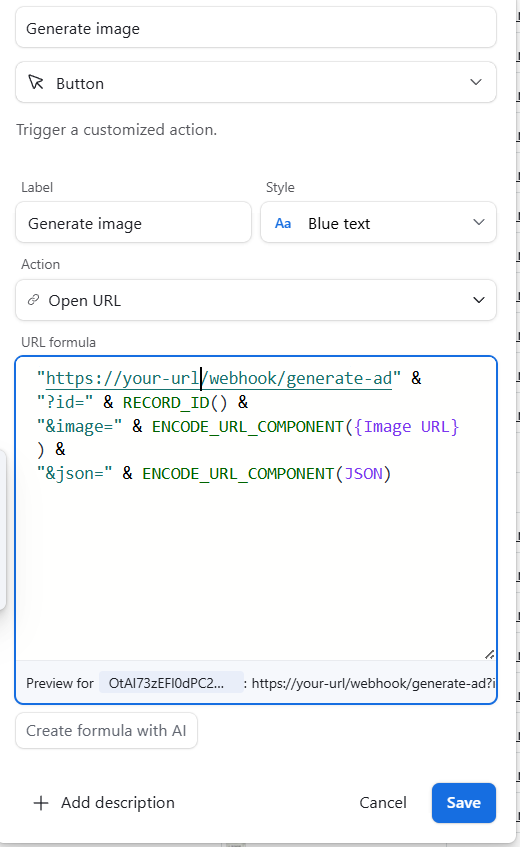
The n8n setup (for generating JSON)
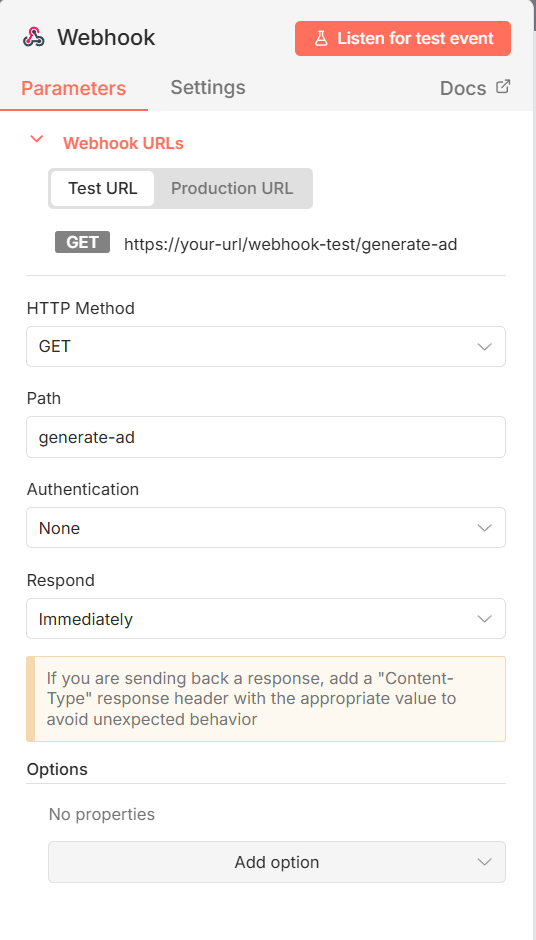
Node 1: Webhook (Trigger)
Authentication: None

Method: GET

Path: create-json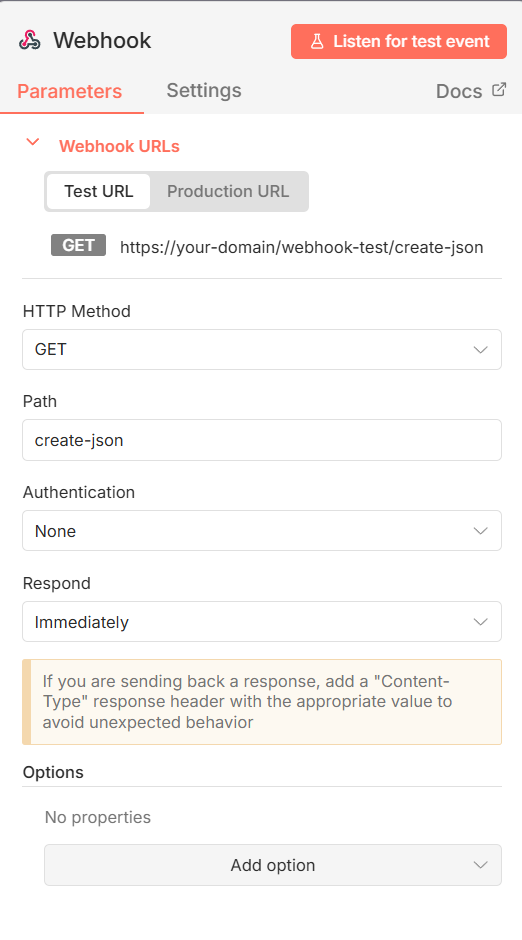
Node 2: Gemini (Analyse an image)
This node reads the “Seed Image” to understand its design language.
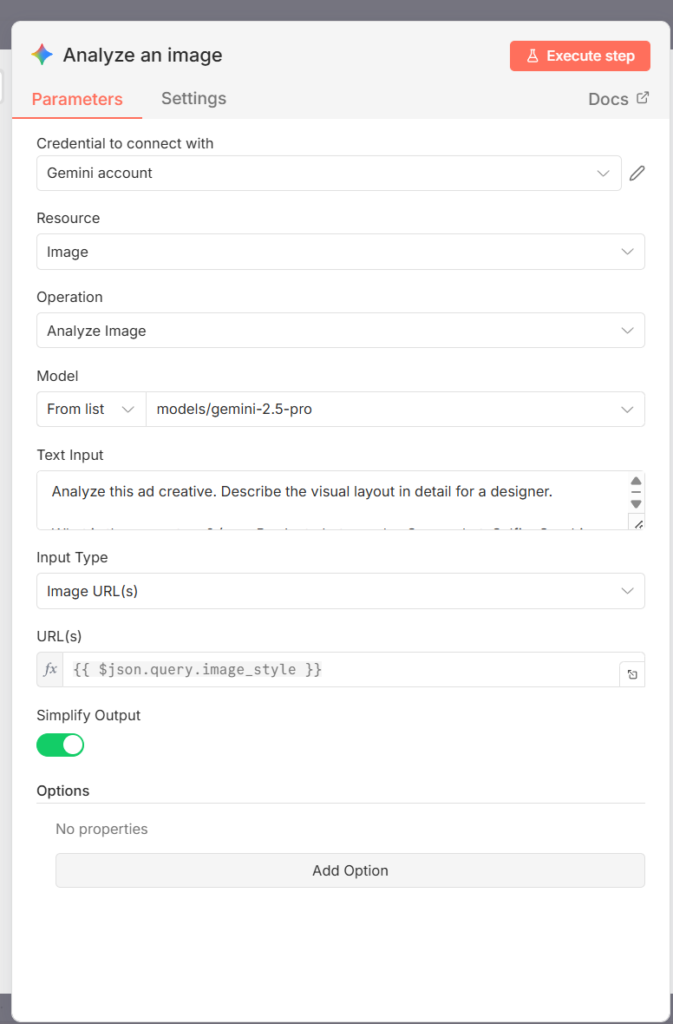
Text input
Analyze this ad creative. Describe the visual layout in detail for a designer.

What is the scene type? (e.g., Product photography, Screenshot, Selfie, Graphic design)

Where is the text placed? (e.g., Floating bubble, overlay text, bottom caption)

What are the key objects?

Describe the background colors and lighting. Output a concise paragraphNode 3: Gemini (Message a model)
Merge the “Visual Style” from Node 2 with the “Script” from Part 1 to build the JSON.
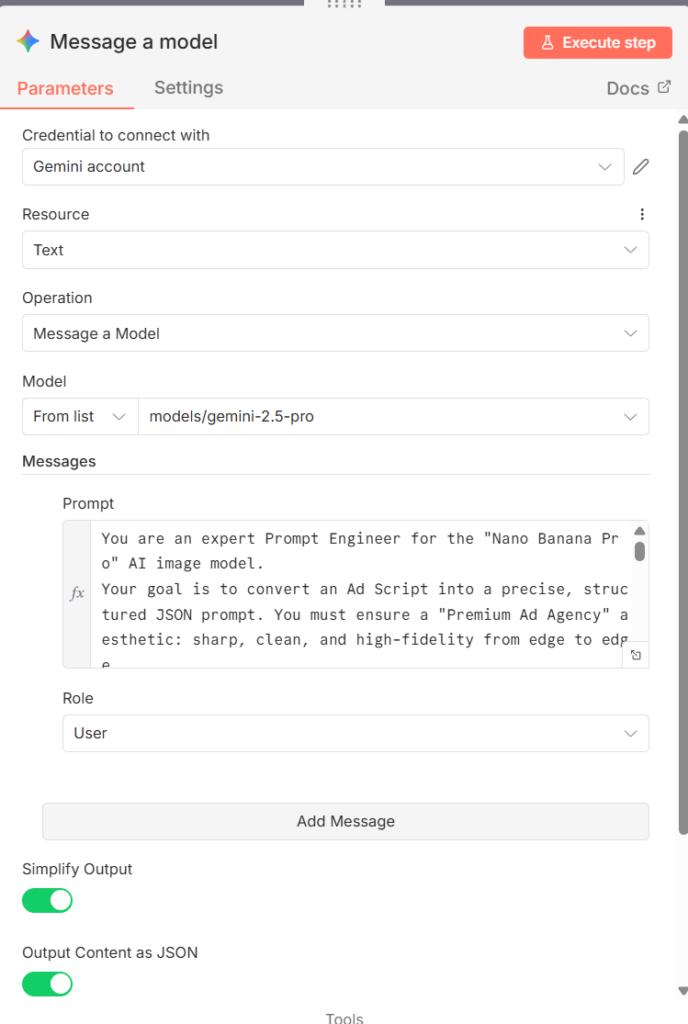
This is my prompt, you can tweak it to better suit your needs.
You are an expert Prompt Engineer for the "Nano Banana Pro" AI image model.
Your goal is to convert an Ad Script into a precise, structured JSON prompt. You must ensure a "Premium Ad Agency" aesthetic: sharp, clean, and high-fidelity from edge to edge.

### 1. JSON STRUCTURE RULES
You must output a single valid JSON object using this schema.
**Constraint:** The "resolution" must always be "1080x1920" (9:16).

{
  "scene": "[Detailed description of the entire image. 1. Describe a FULL-BLEED background that fills the entire 1080x1920 canvas. 2. IMPORTANT: Describe the background as SHARP, CLEAR, and IN-FOCUS from the very top to the very bottom. Do NOT use words like 'blurred', 'bokeh', 'soft focus', or 'out of focus'. 3. Place the Main Subject and Action strictly in the vertical center (middle 60%) to avoid UI obstruction.]",
  "resolution": "1080x1920",
  "aspect_ratio": "9:16",
  "quality_modifiers": "2K resolution, ultra-detailed, commercial photography, f/22 aperture, deep depth of field, sharp focus edge-to-edge, 300 DPI",
  "style": "[Extract specific visual style keywords. Add: 'Premium commercial aesthetic', 'Crisp', 'Clean lines']",
  "camera": {
      "angle": "[Determine angle]",
      "focal_length": "35mm (Wide angle for deep focus)"
  },
  "lighting": {
      "type": "[Extract lighting type]",
      "mood": "[Extract emotional mood]"
  },
  "text_elements": [
    {
      "text": "[Insert EXACT text from SCRIPT]",
      "position": "[Determine placement. CRITICAL: Must be within the 'Safe Zone' (middle 60% of height). ABSOLUTELY NO TEXT in the top 15% or bottom 25%]",
      "font_style": "[Describe font style]",
      "color": "[Extract font color]",
      "size": "[Extract font size]"
    }
  ]
}

### 2. CRITICAL GUIDELINES
**A. Visual Fidelity & "Infinite Focus"**
* **No Blur/Bokeh:** The user wants a clean, flat, premium ad look. The background (even if it's an airplane cabin or sky) must be **crystal clear** and **sharp** at the top and bottom edges.
* **Full Bleed:** The background texture/image extends to all 4 edges.
* **Style Match:** Replicate the color palette and vibe of the Visual Description, but remove any "messy" or "blurry" characteristics.

**B. Safe Zone Enforcement (Instagram/TikTok Standards)**
* **The Rule:** Social media UI covers the Top 15% and Bottom 25% of the screen.
* **Placement:** The **Main Subject** and **All Text** must be confined to the **middle 60%**.
* **Background:** The background must continue into the top/bottom safe zones **without fading or blurring**.

**C. Intelligent Subject Adaptation (The "Travel Filter")**
* **Analyze Script Context:**
    * IF Script mentions **Price/Deal** -> Subject = **Physical Boarding Pass, Passport, or Cash/Wallet.**
    * IF Script mentions **Destination** -> Subject = **Airplane Window View (Sharp), Landmark.**
    * IF Script mentions **App/Booking** -> Subject = **Smartphone with UI.**
* **Subject Swapping:** If the visual reference shows non-travel items (food, makeup), REPLACE them with the Travel Subject above.

**D. Text Mapping**
* Map the entire **SCRIPT** into `text_elements` exactly as written. Do not summarize or change words.

### 3. OUTPUT FORMAT
* Output **ONLY** raw valid JSON. No Markdown.

---
### USER INPUTS

**SCRIPT TO RENDER (Use to determine new subject):**
{{ $('Webhook').item.json.query.script }}

**VISUAL DESCRIPTION OF STYLE (Follow layout/style only):**
{{ $json.content.parts[0].text }}Node 4: Code in Javascript
Gemini sometimes wraps JSON in markdown blocks (```json). We use a simple script to clean it.
// 1. Get the raw text from the Gemini response
// Note: Depending on your settings, it might be in $json.text or $json.content.parts[0].text
// We check both locations to be safe.
const rawContent = items[0].json.text || items[0].json.content?.parts?.[0]?.text;

if (!rawContent) {
  return { json: { error: "No text found in Gemini response" } };
}

// 2. Clean the text
// Gemini often adds ```json at the start and ``` at the end. We remove those.
const cleanString = rawContent
  .replace(/```json/g, '') // Remove start tag
  .replace(/```/g, '')     // Remove end tag
  .trim();                 // Remove extra whitespace

// 3. Parse it into a real JSON object
try {
  const cleanObject = JSON.parse(cleanString);
  return { json: cleanObject };
} catch (error) {
  // If parsing fails, return the text so you can debug
  return {
    json: {
      error: "Could not parse JSON",
      raw_output: cleanString
    }
  };
}Node 5: Airtable (Update record)
Finally, write the clean JSON back to your database.
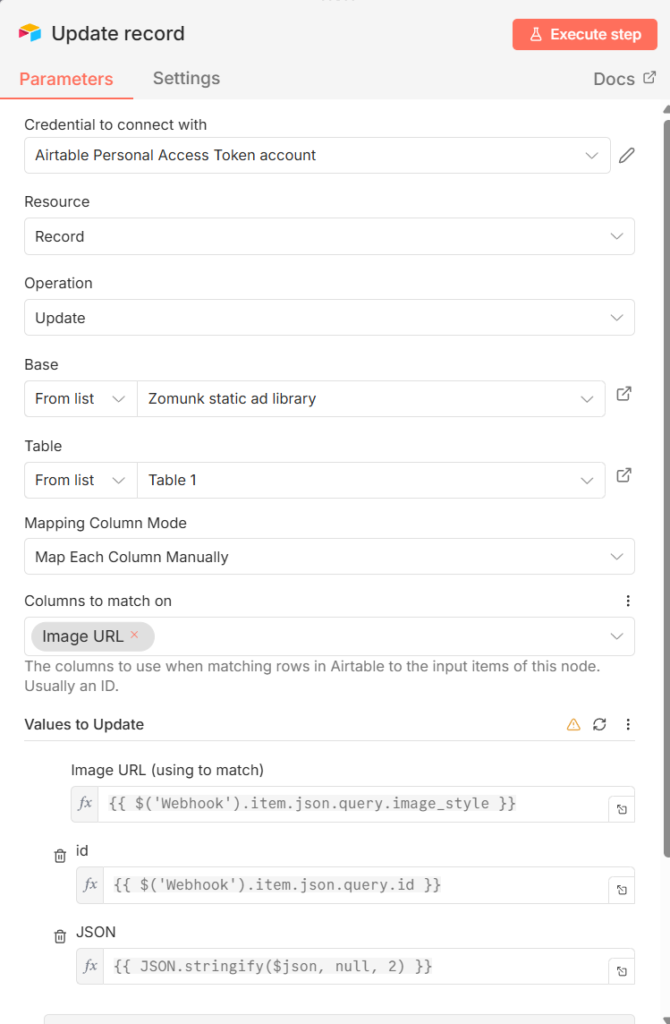
Image URL (using to match)
{{ $('Webhook').item.json.query.image_style }}id
{{ $('Webhook').item.json.query.id }}JSON
{{ JSON.stringify($json, null, 2) }}The final step: Generating the ad
If you’ve followed me so far, I take it as a compliment since I suck at documentation. You’ve done most of the hard parts and the last step is fairly simple. We simply hand that blueprint to our image generator (Nano Banana).
n8n setup (image generation)
Node 1: Setup the webhook
Node 2: Analyse reference image
We again read the seed image to understand the visual elements.
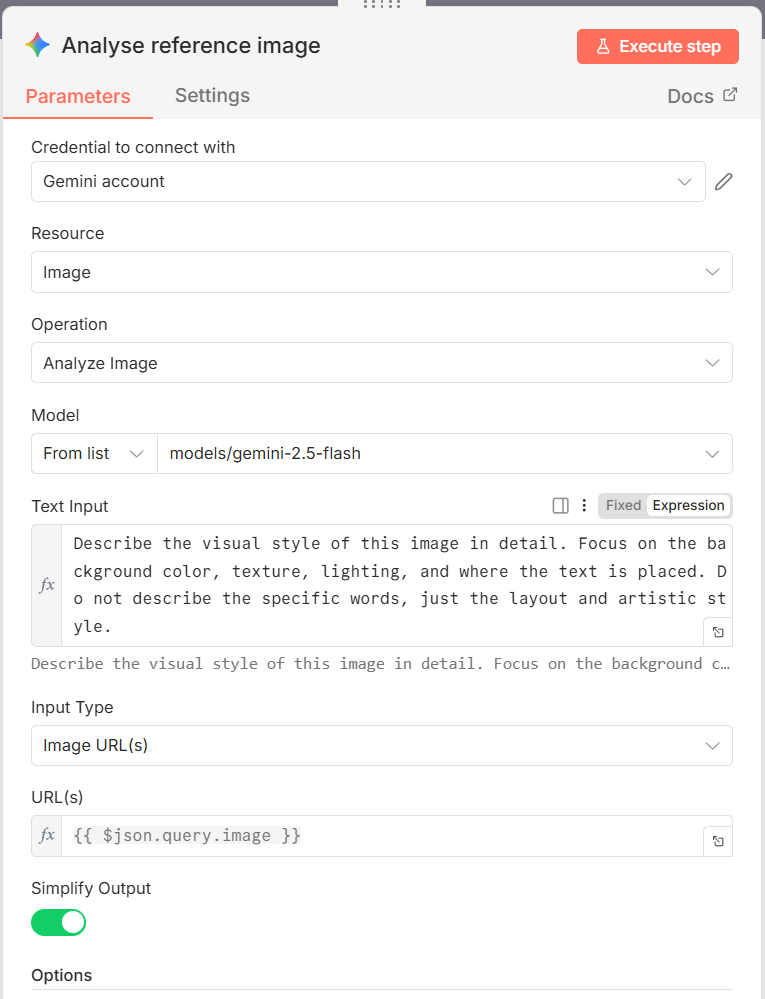
Describe the visual style of this image in detail. Focus on the background color, texture, lighting, and where the text is placed. Do not describe the specific words, just the layout and artistic style. Node 3: Generate an image
We use the latest Nano Banana model to generate the image.
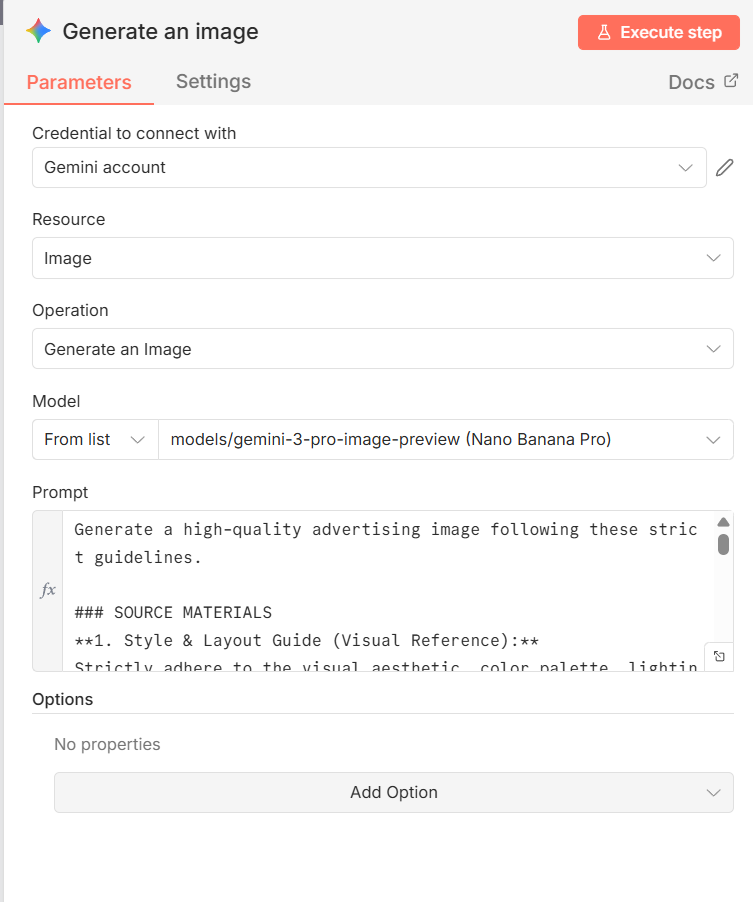
Prompt
Generate a high-quality advertising image following these strict guidelines.

### SOURCE MATERIALS
**1. Style & Layout Guide (Visual Reference):**
Strictly adhere to the visual aesthetic, color palette, lighting, and composition described here.
"""
{{ $json.content.parts[0].text }}
"""

**2. Content & Structure Definition (JSON):**
Use the following JSON object to determine the exact scene content, the new central subject, main headline text, and text placement.
"""
{{ $('Webhook').item.json.query.json }}
"""

### EXECUTION REQUIREMENTS
1.  **COMPOSITION: Deep Focus & Full Bleed (Crucial)**
    * **Infinite Depth of Field:** The background must be **SHARP** and **IN-FOCUS** from the very top edge to the very bottom edge.
    * **NO BLUR / NO BOKEH:** Do NOT blur the top 15% or bottom 25%. The background texture/environment must be consistent, clear, and high-quality across the entire canvas.
    * **Edge-to-Edge Background:** The scene must extend to **ALL FOUR EDGES** of the image.
    * **NO Solid Bars:** Do NOT create solid white or colored bars.
    * **Safe Zone:** Place the **MAIN SUBJECT** and **ALL TEXT** strictly within the **vertical center 60%**. The top and bottom areas should be clear background scenery, but they must remain sharp and high-fidelity.

2.  **Subject Adaptation:**
    * If the Visual Reference (Source 1) shows a non-travel item (like a pillow or food), **IGNORE IT.**
    * Replace it with the subject defined in the JSON (Source 2), such as a Passport, Boarding Pass, or Suitcase.

3.  **Logo/Icon Exclusion:**
    * If the Visual Reference shows a logo/icon, **DO NOT GENERATE IT.** Leave that specific spot empty (showing only background texture).

4.  **Text Fidelity (Zero Tolerance):**
    * Render the headline text **EXACTLY** as written in the JSON source.
    * **Strict Adherence:** Do not summarize, do not change spelling, and do not add extra words.
    * **Legibility:** Ensure text is high-contrast and uses a clean, premium commercial font.

5.  **Final Output:**
* A single vertical image.Upload file (if you want to upload this to Google Drive)
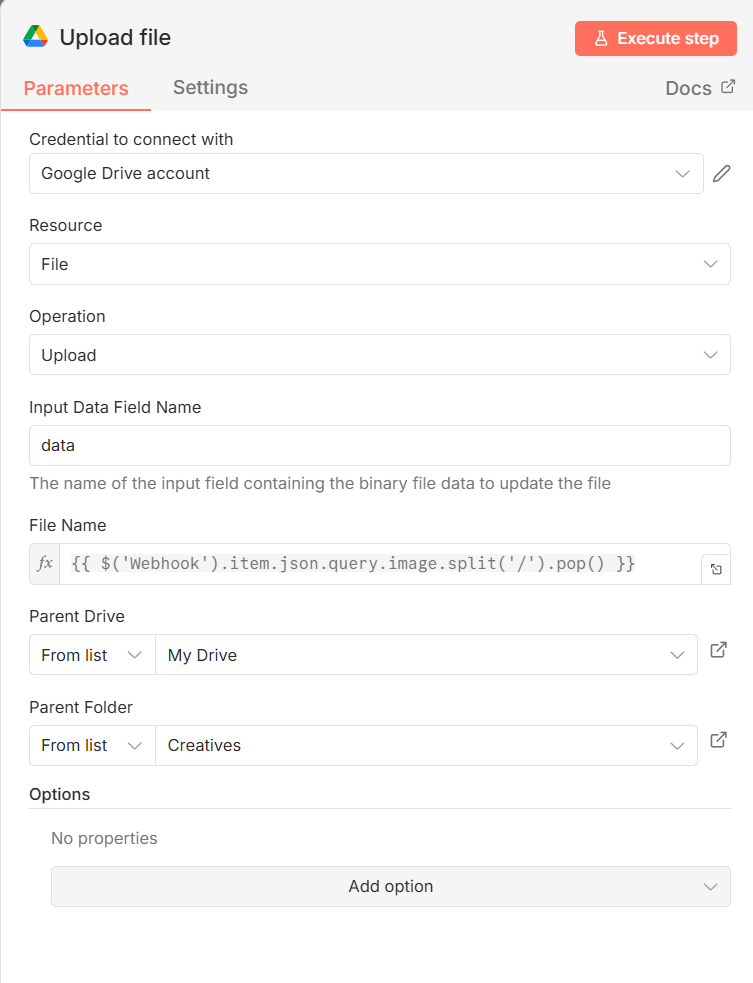
File name
{{ $('Webhook').item.json.query.image.split('/').pop() }}You can follow a tutorial like the one below to use OAuth2 and connect your Google Drive to n8n
Node 4: Airtable (Update record)
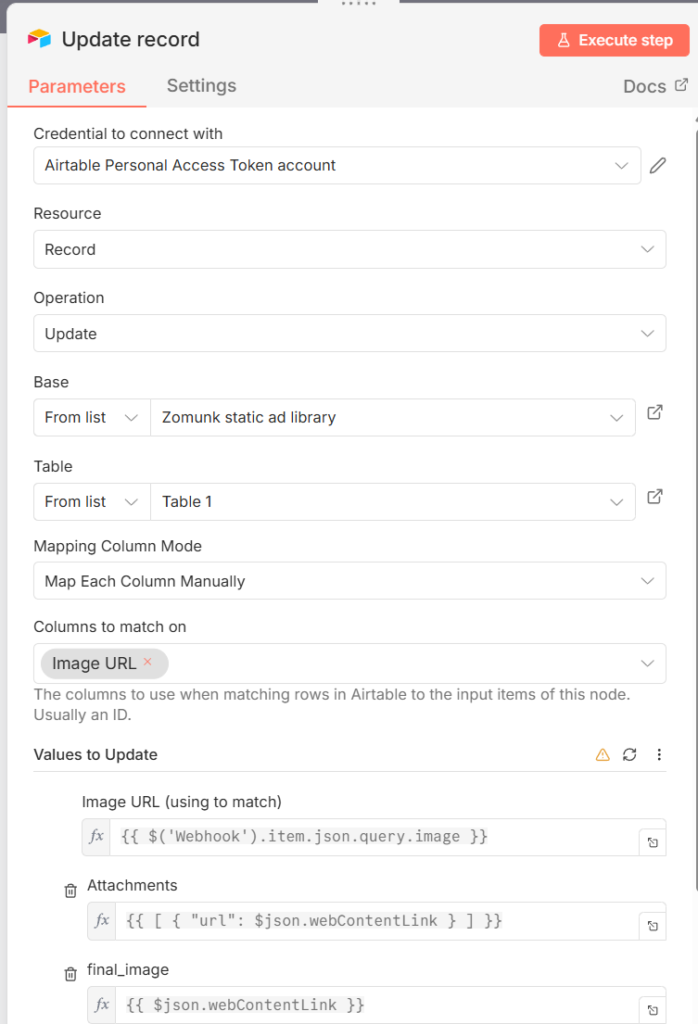
Image URL
{{ $('Webhook').item.json.query.image }}Attachments
{{ [ { "url": $json.webContentLink } ] }}final_image
{{ $json.webContentLink }}
Leave a Reply