Post-Andromeda, creative testing is the most critical aspect in scaling Meta Ads. If you have experience in running Meta ads, you’ve probably come to the same conclusion that you don’t need better media buying; you need more winning creatives.
At Zomunk, we realized the traditional loop of Ideate → Copywrite → Design → Iterate was a slow, expensive process. The “Andromeda” update also gave an forceful push towards automation as Meta’s algorithm now uses your creative assets to find your audience, meaning volume and variety are no longer optional.
I tested various LLMs and concluded that Google Gemini is the only model stable and good enough to automate this entire cycle.
This is Part 1 of our “Ad Ops Automation” series where I’m breaking down how we built a system that:
- Fetches winning ads from various sources (Foreplay, Meta Ad Library, Bigged, etc.).
- Dumps them into Airtable automatically.
- Uses Google Gemini to analyze the visual structure and write a brand-compliant script instantly.
There are manual steps (e.g., clicking a “Fetch” or “Generate” button) to ensure you’re happy with what’s being fed to the API before the final image generation since each API call has a cost.
Note: This tutorial assumes you have a basic understanding of code and APIs to replicate my setup and tinker with things to get the optimal result for your brand.
The Stack & Prerequisites
Before building, ensure you have the following:
- Airtable: Your “Source of Truth” database.
- n8n: The automation orchestrator (Cloud or Self-hosted).
- Foreplay (Optional): For automated ad swiping (Starts at $49/mo).
- Google AI Studio: To access the Gemini API.
The Airtable Base
Before we choose a source for creatives (Paid or Free), we need a destination for running automations and storing the ads. Go to Airtable and set up a table with these specific columns. This is where the orchestration happens.
“Table 1” (Main Table)
This is where your creatives live. Create these columns:
| Column Name | Type | Purpose |
| id | Single Line Text | Unique ID for each ad (prevents duplicates). |
| Image URL | URL | The direct link to the ad image. |
| OG image | Attachment | Visual backup (auto-fetched or uploaded). |
| Generate script | Button | Triggers the AI webhook (details in Gemini Setup). |
| Script | Long Text | The AI-generated copy lands here. |
| Status | Single Select | To track progress (Script generated, Script approved). |
There are some more columns that we will create now but will be used in future automations
| Generate JSON | Clicking this runs the webhook that generates the JSON prompt for creating the image |
| JSON | Gemini output in a JSON format, this gets fed in to the image creation prompt |
| Generate image | Clicking this runs the webhook that generates the image |
| Attachments | Output of Nano Banana image gen |
| final_image | Same output being stored on your Google Drive |
Table 2: “Fetch” (Optional)
Used only if you are automating imports from Foreplay.
| Column Name | Type | Purpose |
| Limit | Number | How many of the most ads to fetch (e.g., 5, 10). This keeps the API limits in check. |
| Fetch ads | Button | Action: Open URL. |

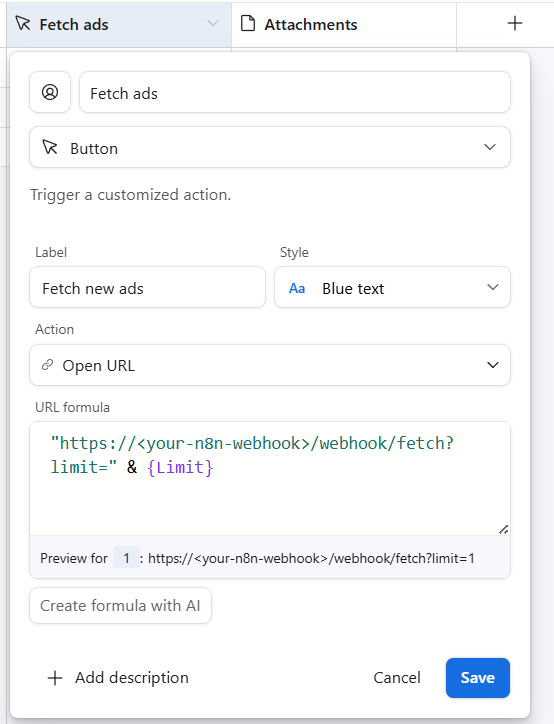
"https://<your-n8n-webhook>?limit=" & {Limit}Generate Your Airtable Personal Access Token
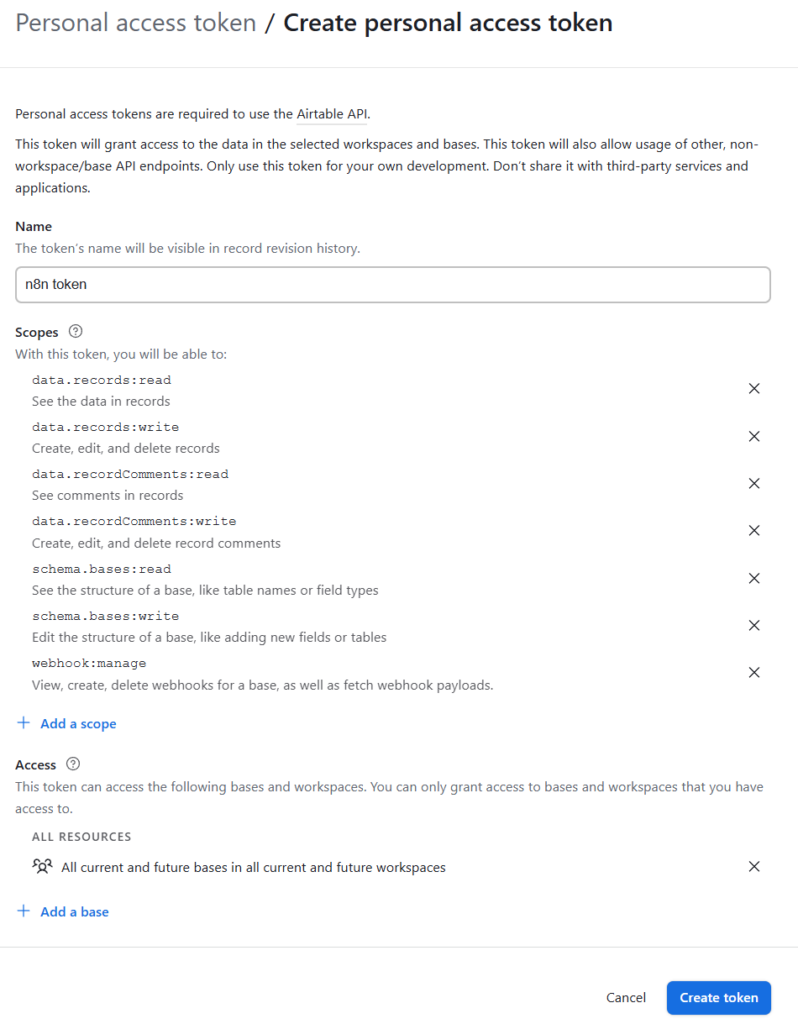
To allow n8n to read and write data to your base, you need a secure token.
- Go to the Developer Hub: Log in to Airtable and visit airtable.com/create/tokens.
- Create New Token: Click the blue “Create new token” button and name your token
- Add Scopes: Add all scopes as shown below
- Add access to all your bases
- Copy the token, we will use that for authentication in the last node of your n8n automation later where you write the Airtable with the AI-generated script

The “Fetch” Pipeline
The “fetch” part of the system is where you source your creatives from. The system is designed to be flexible. I will explain the steps for automated fetching using Foreplay API but this comes at a cost ($49/mo). The same system also supports manual uploads from sources like Bigged, Meta Ad Library, or direct file uploads. For all the manual sources, you are simply pasting the image URL and uploading the file directly into the relevant Airtable columns.
Paid Solution: The Foreplay Pipeline
Skip to the next part if you are manually uploading screenshots.
I use Foreplay for saving ad inspiration. It costs $49/mo, but its API is what makes this automation “zero-touch.”
The Workflow: Sign up, head to their Discovery page, and add the static ads you like to your Swipe File. Saving it to your swipe file helps us pull it to the Airtable. We use the high-res image URL and metadata from their API to “upsert” records into our base.
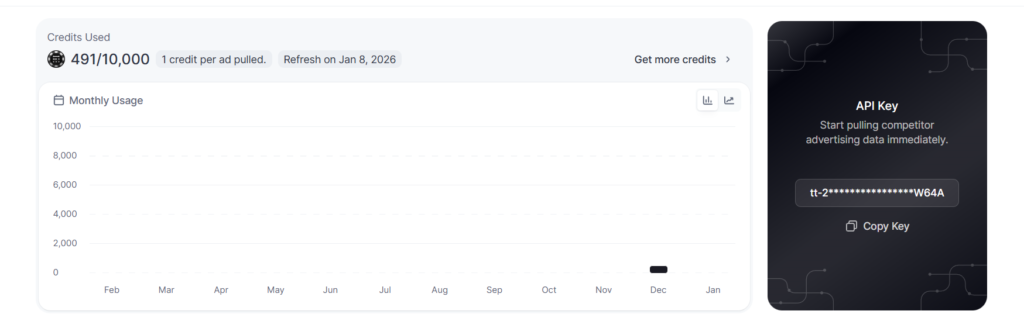
Generate Foreplay API Key
Head to API overview in your Foreplay dashboard and copy your key. You will need this to authenticate your request.
The n8n Workflow for Foreplay → Airtable pipeline
We use n8n to sync creatives from Foreplay → Airtable. Create a new workflow with these nodes:
Node A: Webhook (Trigger)
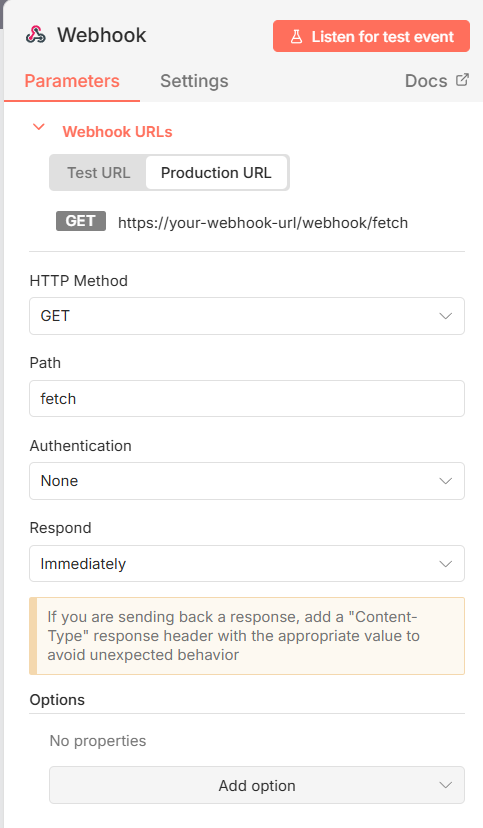
Method: GET

Path: fetch

Note: We use a webhook so we can trigger this directly from an Airtable button if we want to "Refresh" our list manually.Node B: HTTP Request
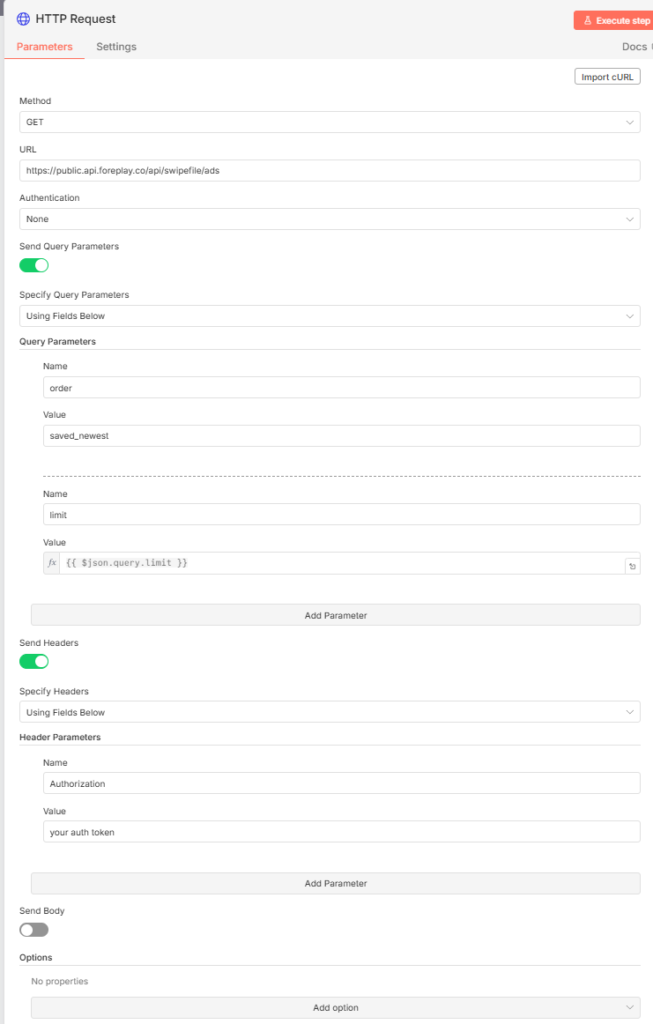
Method: GET

URL: https://public.api.foreplay.co/api/swipefile/ads

Headers: Authorization: Bearer <YOUR_FOREPLAY_KEY>

Query Parameters:

Name: limit

Value: {{ $json.query.limit }} (This allows us to dynamically set how many ads to fetch).Node C: Code (JavaScript) Foreplay’s API returns raw data that can be messy (e.g., carousels vs single images). We use this code to clean it up and ensure we only get valid image URLs.
// Get the data array from the incoming response
const allAds = items[0].json.data || [];
const validImages = [];

for (const ad of allAds) {

  // CASE 1: Standard Single Image Ad
  if (ad.type === 'image' && ad.image) {
    validImages.push({
      json: {
        id: ad.id,
        image: ad.image
      }
    });
    continue;
  }

  // CASE 2: DCO / Carousel Ads (Find the first image)
  if (ad.cards && Array.isArray(ad.cards)) {
    for (const card of ad.cards) {
      if (card.type === 'image' && card.image) {
        validImages.push({
          json: {
            id: ad.id,
            image: card.image
          }
        });
        break;
      }
    }
  }
}

return validImages;Node D: Airtable Node
Finally, add an Airtable node to Upsert (Create or Update) the records. Add your credentials so that it can write the data to the correct base.
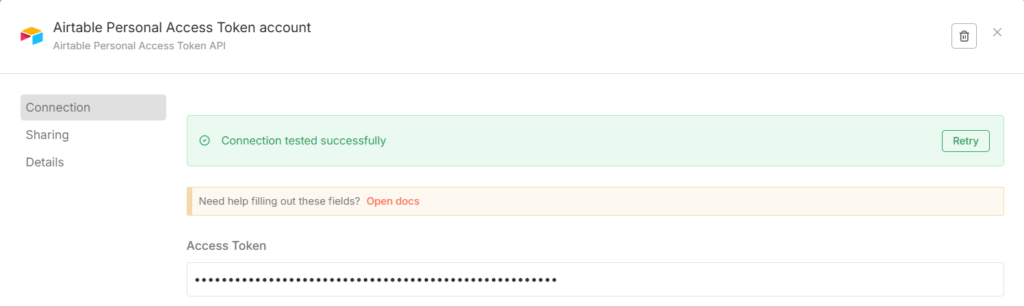
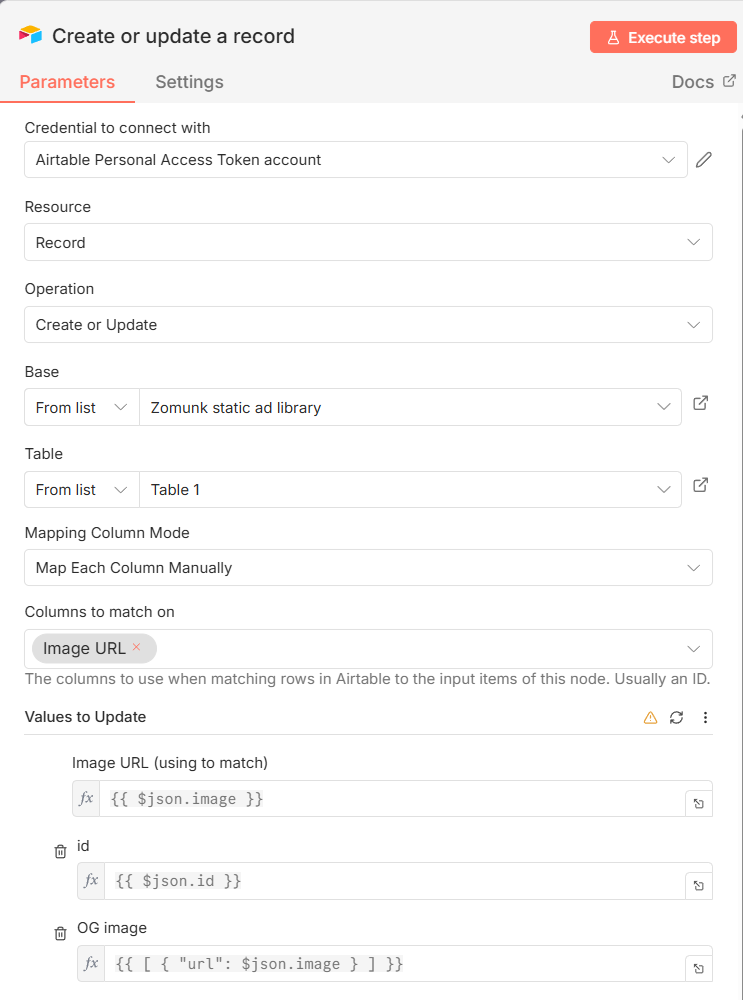
Operation: Upsert

Columns to Match On: id

Mapping:

Image URL: {{ $json.image }}

id: {{ $json.id }}

OG image: {{ $json.image }} (n8n will automatically download the image from the URL and attach it).Free alternative: Meta Ad Library, Bigged, or any other source
If your source is anything else apart from Foreplay, the way to go forward is by manually uploading your ad on a server (or public services like imgur) and pasting the path into Airtable. You will also upload a backup into Airtable for futureproofing in case it gets deleted from the host.
The Workflow:
- Find an ad you like.
- Upload the image to a host (or directly to the OG image attachment column in Airtable).
- Crucial Step: You must manually provide a unique ID in the
idcolumn. This can be anything (e.g.,manual_001,fb_ad_229) as long as it is unique. - Ensure the
Image URLcolumn is filled. If you uploaded an attachment to Airtable directly, you can use an Airtable formula to extract the public URL of the attachment so the API can read it.
2. Setting up Gemini
To get Gemini to read your images and write scripts at scale, you need to move beyond the web interface and use the Google AI Dev API.
Steps:
- Sign up: Go to Google AI Studio.
- Claim Credits: New accounts can often claim $300 in credits. To unlock full API rate limits and ensure “Pro” model stability, you usually need to load a minimum of ₹1000 (~$12) into your billing account. This amount is refundable.
- Get your API Key: * Click on “Get API key” in the top left sidebar.
- Click “Create API key in new project.”
- Copy this key, you’ll need it for the node B in the n8n automation below.

3. n8n automation for ingesting creatives and generating scripts
Once the ad is in Airtable (via Foreplay or manually), we trigger the “Brain” using a Webhook. For this, we create a button “Generate script” in the Airtable with the following code. Clicking this button sends the Record ID and Image URL to our n8n webhook.
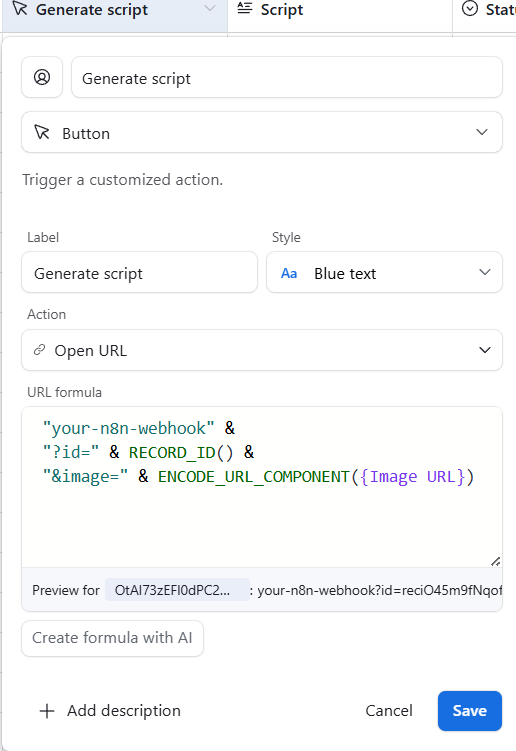
"https://<your-webhook>" &
"?id=" & RECORD_ID() &
"&image=" & ENCODE_URL_COMPONENT({Image URL})Replace <your-webhook> with your actual webhook endpoint
Next, create a n8n workflow that listens for a request, sends the image to Gemini, and updates Airtable.
Node A: Webhook
Path: zomunk-generate (you can rename this accordingly)

Query Parameters: Expect id and imageNode B: Gemini node, select Analyse image
This is the crucial node which analyses your seed image and then creates a script for your brand. For example, if your seed creative says “iPhone – best phone in 2026” and your brand “YogaD2C” sells Yoga Mats, it may generate an output “YogaD2C – best yoga mats in 2026”. It will also read the other illustrations, graphics in the seed image and create something relevant for your brand.
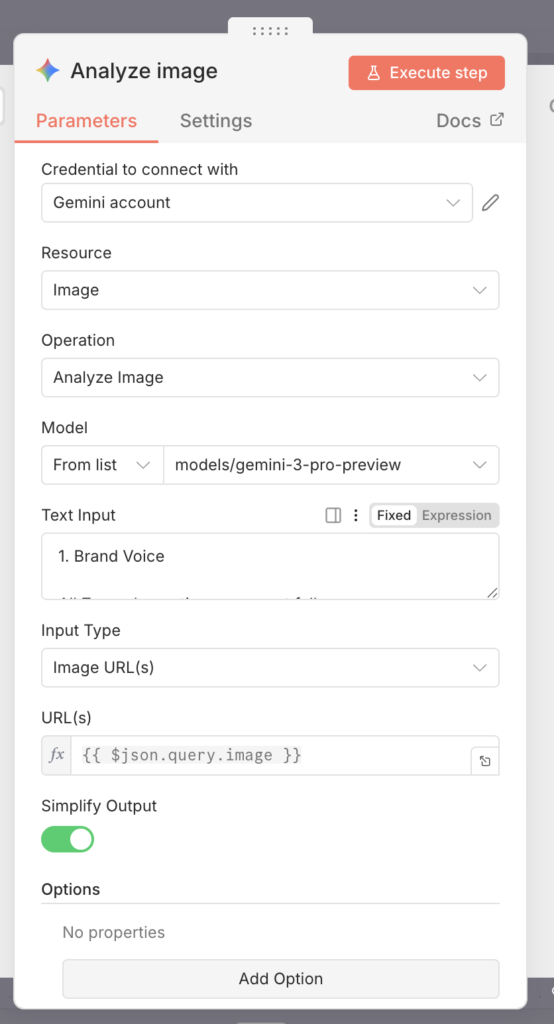
To start with:
- You add your Gemini API credentials in this node to consume the API (docs)
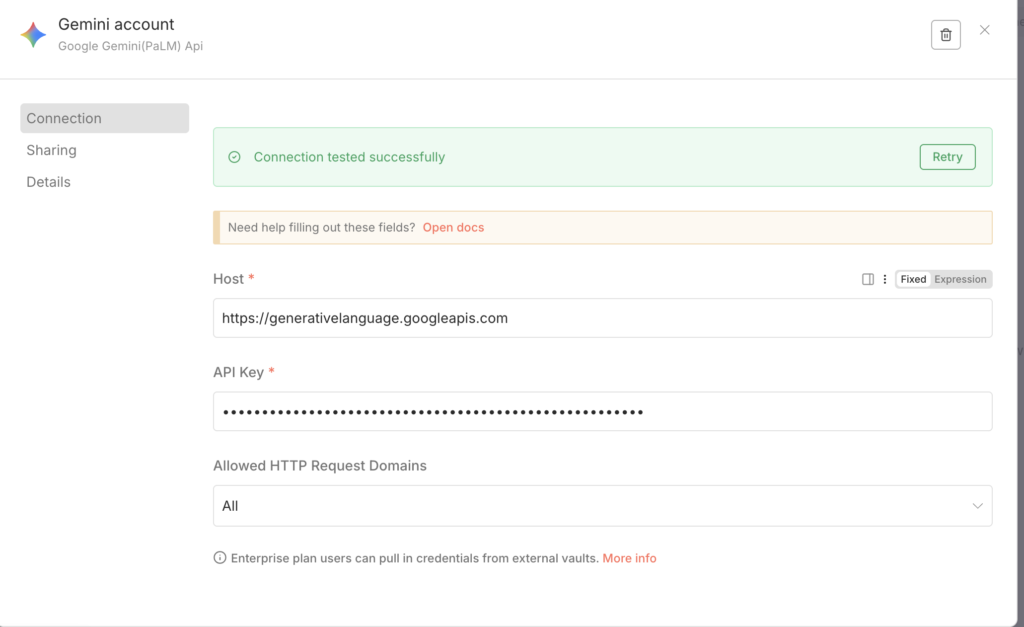
- Resource: Image
- Operation: Analyse image
- From list: Select the latest Gemini model here
- Text input: Ask Gemini / ChatGPT to create a prompt based on what it knows about your brand. It’s important you modify the placeholders between [brackets] in the below prompt. THis might require a few iterations for you to reach a point where you are happy with the script output. Make sure it has examples (eg: price, hero product etc.) so that it knows what needs to be featured.
You can start with a prompt like the one below in your preferred LLM (though we’ve seen far better outputs with Gemini as compared to ChatGPT).
# ROLE
You are a viral social media copywriter specializing in high-performance Meta and DTC ads. Your job is to "remix" a winning ad creative for my specific brand.

# BRAND CONTEXT
[PASTE YOUR BRAND GUIDELINES HERE - Include Voice, Audience, and Product USP]

# TASK
1. Analyze the attached image's VISUAL STRUCTURE (e.g., is it a Notes app, a Checklist, a Notification, a Comparison table, or a Search bar?).
2. Extract the "Core Hook" logic (e.g., "Problem vs. Solution" or "Myth vs. Reality").
3. Rewrite the text content for MY BRAND, maintaining the exact same layout, character length, and "vibe" as the original image.

# CRITICAL RULES
1. IGNORE UI CHROME: Do not include status bars (9:41, Battery), "Back" buttons, or "Search" bars unless they are part of the creative's joke/hook.
2. MIMIC FORMATTING: If the original uses lowercase, you use lowercase. If it uses specific emojis (❌/✅), you use them too.
3. ADAPT, DON'T DESCRIBE: Do not explain what you are doing. Simply output the text that should live inside the creative.
4. VOICE ALIGNMENT: Use my brand voice provided above. Be punchy, direct, and avoid "marketing speak."

# TARGET OUTPUT FORMAT (Example)
[Headline matching the image's style]
[Bullet points or list items matching the image's style]
[CTA or Price point matching the image's style]

Your Turn. Output only the creative text for the attached image:Node C: Airtable: Update a record
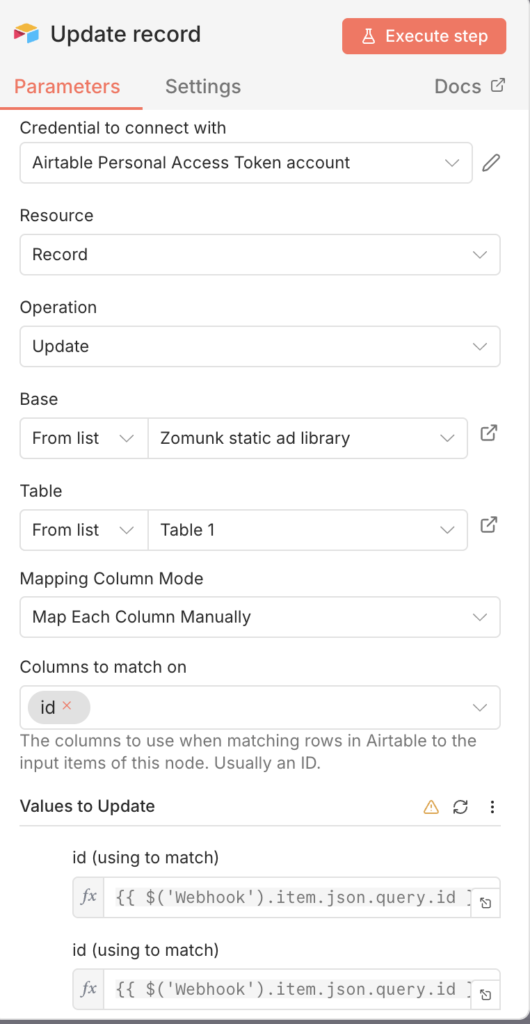
id
{{ $('Webhook').item.json.query.id }}Status
Script generatedThis should update your Airtable with a script on the lines of seed creative but tweaked for your brand.
In the next part, we use this script and generate a JSON. This JSON includes the visual direction of the creative + script tailored for your brand which is then fed into the Nano Banana API to generate your ad.
Leave a Reply